
iVCam Webcam
e2esoft
Sep 29, 2019
May 5, 2026
11.27 MB
7.4.2
6.0
5,000,000+

Description
Why buy a webcam since you already have a smartphone / tablet?
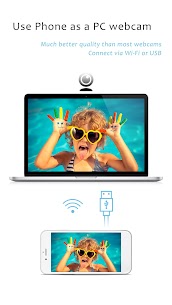
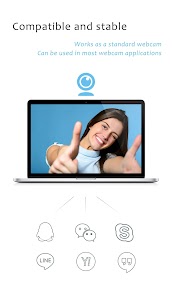
iVCam turns your smartphone / tablet into an HD webcam for Windows PC. You can also replace your old USB webcam or integrated webcam with it which has a better quality.
No enough space on your device? iVCam can record the video directly to your PC, works just like a remote video recorder!
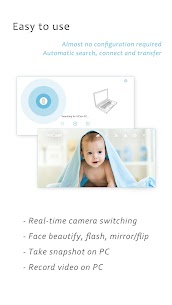
Setting up iVCam is very simple – just download and install our client software on your PC and you're ready to go! The connection is fully automatic and requires no manual configuration.
Main Features:
– High-quality, real-time video with low latency and fast speed
– Automatic connection via Wi-Fi or USB and easy to use
– Running in background, does not affect the use of other apps
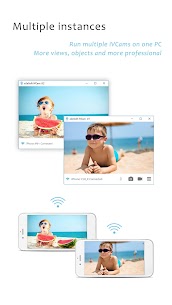
– Connect multiple devices to one PC at the same time
– Support common video sizes such as 4K, 2K, 1080p, 720p, 480p, 360p, etc.
– Advanced camera settings – AE/AF, ISO, EC, WB and Zooming
– Configurable for video frame rate, quality and encoder
– Landscape and Portrait mode supported
– Support front/rear, wide angle/telephoto cameras and real-time switching
– Support for face beautify, flash, manual/auto focus and video flip/mirror
– Background replacement – Blur, Bokeh, Mosaic, Green Screen and more
– Audio supported, use your smartphone as a wireless microphone for PC
– Completely replaces USB webcam or integrated webcam, compatible with most applications using webcam
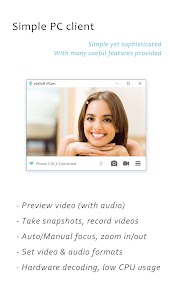
– Preview video, take pictures and record video files with our Windows client software
Install required Windows client software from http://www.e2esoft.com/ivcam.
Terms of Use:
https://www.e2esoft.com/ivcam/terms-of-use.
Foreground Service Activation Notice:
To ensure that video and audio capture remains available even when the device is in a locked state—thereby achieving power efficiency and stable operation—we have enabled a foreground service. A persistent notification is shown in the notification bar to inform users that the service is currently running, and users can stop the foreground service through the notification.
Images
Download links
How to install iVCam Webcam?
1. Download the ZIP file.
2. Install the Split APKs Installer application
3. Open the application and click on "Install APKs".
4. Find the folder where the downloaded ZIP is located and select it.
5. Follow the steps that appear on the screen.
Related apps







Latest Apps
-
New
 XP IPTV4.1.5 Sidhbali Tech 48.48 MB May 27, 2026
 -
New
 GSE SMART IPTV PRO1.8 droidvision December 2, 2022
 -
New
 iMPlayer Mobile IPTV Player2.5.5 HzApps 57.1 MB July 27, 2026
 -
New
 Wolf Warfare1.0.88 SPECIAL (HONG KONG) CO. LIMITED 809.63 MB July 30, 2026
 -
New
 Televizo – IPTV player1.9.9.31-g Andrey Menscikov 46.62 MB June 13, 2026
-
Most rated apps
-
 Free Fire x JUJUTSU KAISEN1.123.1 GARENA INTERNATIONAL I 501.47 MB April 1, 2026
 -
 Messenger559.0.0.49.75 Meta Platforms Inc. 70 MB May 4, 2026
 -
 Flipkart Online Shopping App9.3 Flipkart April 21, 2026
 -
 TikTokVaries with device TikTok Pte. Ltd. 456.86 MB April 22, 2026
 -
 Clash of Clans18.350.2 Supercell 747.25 MB April 23, 2026
-